# SUPRA - Full Documentation
> Supra is a full-stack, high-performance Layer 1 blockchain ecosystem with native oracles, verifiable randomness, automation, and cross-chain bridging. Supports both MoveVM and EVM smart contracts.
Source: https://docs.supra.com
---
## Supra Layer 1
### Source: https://docs.supra.com/overview
# Overview
One chain. Full developer stack.
Supra is more than a Layer 1. It’s a full-stack, high-performance blockchain ecosystem built to support the next generation of decentralized applications. Whether you’re building DeFi, GameFi, AI/ML protocols, or cross-chain solutions, Supra provides the tools to move faster and scale with confidence.
With ultra-fast finality, low-latency oracles, secure automation, and seamless bridging, Supra brings everything together in one vertically integrated platform.
### Native Oracles: Real-Time, Reliable, and Customizable
Supra’s native oracle network brings unmatched speed and precision to on-chain data delivery.
- **Data Feeds** – Pull and push-based price feeds with fast refresh rates and multi-source aggregation.
- **dVRF (Distributed Verifiable Random Function)** – A next-gen dVRF system that delivers secure, provably fair randomness optimized for performance-critical applications like gaming, NFTs, lotteries, and more.
---
### Native Automation: Set-and-Forget Smart Contract Execution
Supra's 0-block delay automation framework lets you schedule and trigger smart contract functions with zero upkeep. Built directly into the execution layer.
- **Use Cases** – Automated liquidations, recurring payments, rebalancing strategies, yield harvesting, and more.
- **Developer Friendly** – No external keepers or centralized intermediaries required.
---
### Native SupraNova Bridge: Fast, Secure, Modular Interoperability
SupraNova is our flagship bridge — a secure, modular, and composable interoperability protocol that allows fast asset and message transfers between Supra and other ecosystems. Supporting two different bridging technologies based on use cases
- **[HyperNova:](https://supra.com/documents/Supra-HyperNova-Whitepaper.pdf)** A trustless bridge protocol that uses the source chain’s consensus layer for event verification using validator signatures.
- **[Hyperloop:](https://supra.com/documents/Supra-Hyperloop-Whitepaper.pdf)** A fast, multi-signature-based game-theoretically secure bridge designed for source chains for which HyperNova-style trustless bridging is not applicable or feasible or results in high latency (Layer 2 chains).
### Source: https://docs.supra.com/network-information
# Network Information
Relative network, faucet, and API details.
---- | ------------------------------- | -------- |
| Mainnet | `https://rpc-mainnet.supra.com` | 8 |
| Testnet | `https://rpc-testnet.supra.com` | 6 |
### Testnet Faucet
```
https://rpc-testnet.supra.com/rpc/v1/wallet/faucet/
```
---
## Supra EVM
| Network | Rest API | Chain ID |
| ------------- | -------- | -------- |
| RPC Info Soon | TBA | TBA |
### Faucet
Coming soon...
### Source: https://docs.supra.com/useful-links
# Useful Links
Quick access to official resources, developer tools, and community channels.
| Core Resources | Links |
| ------------------------------------ | ---------------------------------------------------------------------------------------- |
| **Official Website:** | [https://supra.com/](https://supra.com/) |
| **Documentation (Network Details):** | [https://supra-documentation.com/network-information](/network/network-information) |
| **Block Explorer:** | [https://suprascan.io/](https://suprascan.io/) |
| **Faucet:** | [https://supra.com/faucet/](https://supra.com/faucet/) |
| **StarKey Wallet** | [https://starkey.app/](https://starkey.app/) |
| Developer Resources | Links |
| ----------------------------- | ------------------------------------------------------------------------------ |
| **Official GitHub:** | [https://github.com/Entropy-Foundation](https://github.com/Entropy-Foundation) |
| **Dev Newsletter (DevWire):** | [https://hub.supra.com/devwire](https://hub.supra.com/devwire) |
| **Developer Forum:** | [https://forum.supra.com/](https://forum.supra.com/) |
| **Discord:** | [https://discord.com/invite/supralabs](https://discord.com/invite/supralabs) |
| Social & Community | Links |
| ------------------ | ------------------------------------------------------------------------------------------------ |
| **X (Twitter):** | [https://x.com/SUPRA_Labs](https://x.com/SUPRA_Labs) |
| **YouTube:** | [https://www.youtube.com/@SupraOfficial](https://www.youtube.com/@SupraOfficial) |
| **LinkedIn:** | [https://www.linkedin.com/company/supraoracles/](https://www.linkedin.com/company/supraoracles/) |
| **Reddit:** | [https://www.reddit.com/r/SupraLabs/](https://www.reddit.com/r/SupraLabs/) |
| **Instagram:** | [https://www.instagram.com/supra.labs/](https://www.instagram.com/supra.labs/) |
| **TikTok:** | [https://www.tiktok.com/@supra_labs](https://www.tiktok.com/@supra_labs) |
| Company | Links |
| ----------- | -------------------------------------------------------- |
| **Careers** | [https://supra.com/careers/](https://supra.com/careers/) |
| AI & LLM Resources | Links |
| ------------------------------- | ------------------------------------------------------------------ |
| **Documentation index (llms.txt):** | [https://docs.supra.com/llms.txt](https://docs.supra.com/llms.txt) |
| **Full docs for LLMs (llms-full.txt):** | [https://docs.supra.com/llms-full.txt](https://docs.supra.com/llms-full.txt) |
### Source: https://docs.supra.com/moonshot
# Moonshot Consensus Algorithm
Moonshot is a family of high-performance Byzantine Fault Tolerant (BFT) consensus protocols designed for blockchain systems.
### Overview
The Moonshot protocols aim to optimize chain-based rotating leader BFT consensus by achieving both low latency and high throughput.
### Key Features
1. Low Latency: Moonshot protocols achieve a minimum view change block period (ω) of δ and a minimum commit latency (λ) of 3δ, where δ is the network transmission latency.
2. Optimistic Responsiveness: Moonshot protocols make progress in time proportional to the actual network delay, independent of any known upper bound.
3. Reorg Resilience: Moonshot ensures that when an honest leader proposes after Global Stabilization Time (GST), one of its proposals becomes certified and is extended by every subsequently certified proposal.
4. Short View Length: Pipelined Moonshot and Commit Moonshot achieve a view length (τ) of 3Δ, where Δ is the known upper bound on network delay.
5. Pipelining: Some Moonshot variants implement pipelining to improve efficiency in certain network conditions.
### Variants
1. **Simple Moonshot:** The basic version with ω = δ, λ = 3δ, and reorg resilience.
2. **Pipelined Moonshot:** Improves upon Simple Moonshot with full optimistic responsiveness and τ = 3Δ.
3. **Commit Moonshot**: Further optimizes for scenarios where block proposals take longer to disseminate than votes.
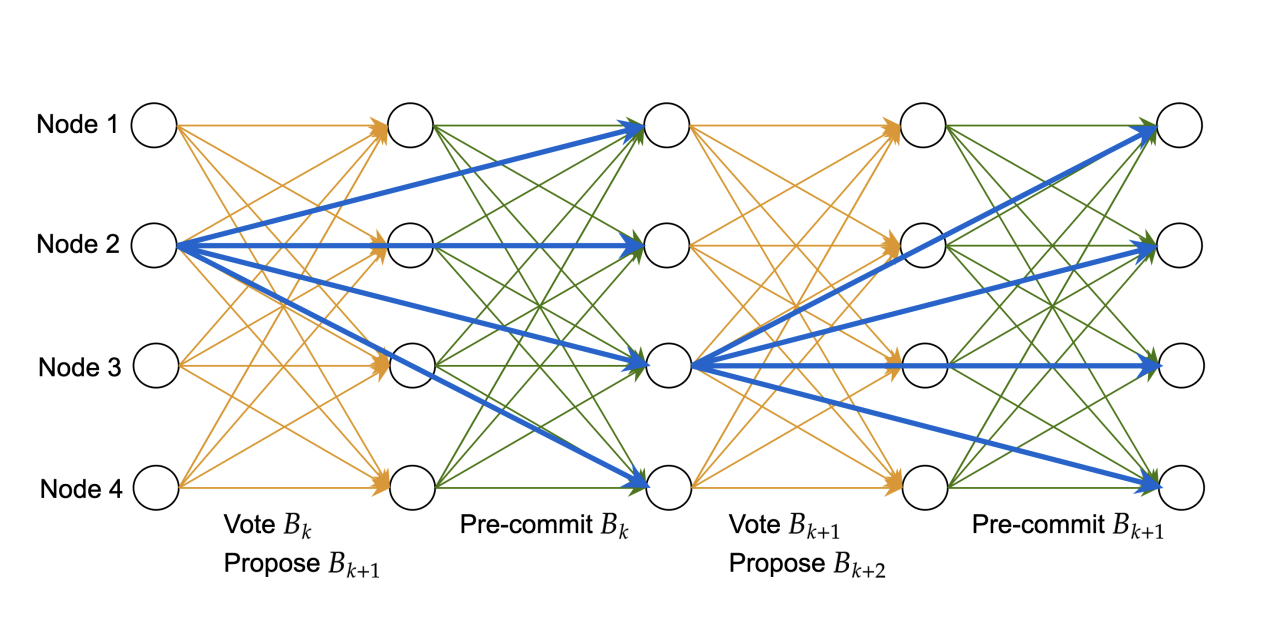
Explicit commit votes (pictured in green) enable Commit Moonshot to commit blocks sooner than its pipelined
counterparts when block proposals (pictured in blue) take sufficiently longer to disseminate than votes.
1.**Direct Pre-commit:** When a node receives Cv(Bk) in any view v' where v' ≤ v:
- If timeout_view < v, send out ⟨commit, H(Bk), v⟩
2.**Indirect Pre-commit**: When a node receives Cv(Bk) in any view:
- If it has already sent a commit vote for any descendant of Bk
- And timeout_view < v
- And it hasn't yet sent ⟨commit, H(Bk), v⟩ Then send out ⟨commit, H(Bk), v⟩
3.**Alternative Direct Commit**: When a node receives commit messages from a quorum:
- If the messages are ⟨commit, H(Bk), v⟩ from different nodes
- In any view Then commit Bk
### Performance
Moonshot protocols have been shown to outperform existing state-of-the-art protocols like Jolteon in both failure-free scenarios and the presence of failures. They achieve higher throughput and lower latency in wide-area networks of up to 200 nodes.
### Implementation Considerations
While Moonshot protocols offer superior performance in many scenarios, they have higher communication complexity (O(n²)) compared to some linear protocols. Developers should consider the trade-offs between communication complexity and performance metrics like latency and throughput when choosing a consensus protocol for their specific use case.
For detailed implementation guidelines and API references, please refer to the subsequent sections of this documentation.
---
## Supra MoveVM
### Source: https://docs.supra.com/network/move/overview
# Overview
Welcome to the Supra Move Layer 1 network documentation. Supra's MoveVM is a high-performance blockchain designed to support secure and scalable decentralized applications. As part of Supra's vertically integrated L1 ecosystem, MoveVM offers developers a robust platform to build and deploy applications using the Move programming language, renowned for its safety and efficiency.
Incorporating native services such as oracles, verifiable randomness, automation, and cross-chain communication, Supra's MoveVM enables the creation of "Super dApps" that are both composable and performant. This documentation provides comprehensive resources to help you get started, from setting up the Supra CLI to deploying your first Move smart contract and dApp. Whether you're new to Move or an experienced developer, this guide will support you in harnessing the full potential of Supra's MoveVM.
---
### Source: https://docs.supra.com/network/move/getting-started
# Getting Started
Want to build on the Supra Move blockchain? You've come to the right place!
We’ll take you through all you need to deploy your first Supra Move contract from scratch, all in four broad stages:
1. First, we will install docker and the Supra CLI.
2. Then we’ll complete the initial setup.
3. Then we’ll use the testnet faucet.
4. Finally, we’ll deploy your first Move contract on Supra.
The Supra CLI includes easy commands for the Supra Move network that make it beginner friendly and easy to use. If you get stuck anywhere or face any issues, please reach out to us on [Discord](https://www.discord.gg/supralabs).
For the latest RPC URL, please refer to the [Supra Network Information](/network/network-information) page.
---
### Source: https://docs.supra.com/network/move/getting-started/docker
# Introduction to Docker
Before installing the Supra CLI, you will need to install Docker. It’s helpful to understand what Docker is, how it works, and why we use it for this setup. This page includes some information that you will find useful once you move on to setting up the Supra CLI.
***
## Prerequisites
* [ ] Install [Docker Desktop](https://www.docker.com/) ([Windows](https://docs.docker.com/desktop/setup/install/windows-install/), [Mac](https://docs.docker.com/desktop/setup/install/mac-install/), [Linux](https://docs.docker.com/desktop/setup/install/linux/))
***
## What Is Docker?
**Docker** is a platform that packages applications into lightweight, portable **containers**. These containers include everything an app needs to run: code, runtime, libraries, and environment variables.
Think of containers as lightweight, isolated virtual machines — but more efficient and faster to start.
***
## Why Use Docker with the Supra CLI?
Docker provides a consistent, repeatable environment that eliminates:
* OS differences (Linux, Mac, Windows)
* Dependency/version mismatches
* “It works on my machine” issues
With Docker, developers can run the **Supra CLI** in a pre-configured environment without needing to install the CLI or dependencies locally.
***
## What Is Docker Compose?
**Docker Compose** is a tool used to define and run multi-container Docker applications using a YAML file (`compose.yaml` or `docker-compose.yml`).
YAML is a human-readable data serialization language. It is commonly used for configuration files.
In our case, the Compose file:
* Defines the container configuration for the Supra CLI
* Specifies the image to use
* Sets up **bind mounts** to share files between your machine and the container
***
## Bind Mounts
A **bind mount** is a way to share directories between your host machine and the container.
In the Supra CLI setup:
* The `supra/configs` folder on your host is bind-mounted to the `configs/` folder inside the container.
* The `supra/move_workspace` folder on your host is bind-mounted to the `move_workspace/` folder inside the container.
* This means anything you create/do inside these folders within the container will appear on your host — and vice versa.
Example: `~/Documents/supra/configs ↔ /supra/configs`
***
## Entering the Shell of a Container
Once you proceed with the CLI setup, you'll create a docker container containing the CLI binary. To interact with the CLI, you'll need to enter into the shell of the container. When a docker container is running, you can open a terminal session _inside_ of it using:
```bash
docker exec -it supra_cli /bin/bash
```
* `exec` tells Docker to run a command inside an existing container.
* `-it` allows interactive terminal input/output.
* `supra_cli` is the name of the container.
* `/bin/bash` starts a shell session.
This is useful when you want to:
* Run the Supra CLI directly (`supra move tool ...`)
* Explore the file system
* Debug issues inside the container
Make sure the container is running first:\
Use `docker start supra_cli` if needed.
***
## Common Docker Commands
Some of these commands may come in handy later.
| Command | Description |
| --------------------------------------- | ------------------------------------------ |
| `docker ps --all` | Lists all containers (running and stopped) |
| `docker start ` | Starts an existing container |
| `docker stop ` | Stops a running container |
| `docker exec -it /bin/bash` | Enters the shell of a container |
| `docker logs ` | Prints logs from a container |
| `docker rm ` | Removes a container |
| `docker images` | Lists downloaded Docker images |
| `docker volume ls` | Lists Docker volumes (persistent storage) |
***
## Common Docker Compose Commands
Some of these commands may come in handy later.
| Command | Description |
| ------------------------ | ----------------------------------------------------- |
| `docker compose up -d` | Starts containers in detached (background) mode |
| `docker compose down` | Stops and removes containers, networks, and volumes |
| `docker compose ps` | Lists containers defined in your Compose file |
| `docker compose logs` | Shows logs from all Compose services |
| `docker compose restart` | Restarts all services defined in the Compose file |
| `docker compose pull` | Pulls the latest versions of images from the registry |
| `docker compose build` | Builds or rebuilds services defined in the file |
You can also use `docker compose -f ` to specify a compose file, including remote files via `curl ... | docker compose -f - up`.
***
## Summary
Docker simplifies the Supra CLI experience by:
* Eliminating setup headaches
* Ensuring all developers use the same runtime
* Providing isolated environments with shared config folders
If you're new to Docker, this may feel like a lot — but once set up, you’ll rarely need to modify it again.
***
## Want to Learn More?
* [Docker Overview (Official Docs)](https://docs.docker.com/get-started/overview/)
* [Docker Compose Overview](https://docs.docker.com/compose/)
* [Docker Bind Mounts](https://docs.docker.com/storage/bind-mounts/)
### Source: https://docs.supra.com/network/move/getting-started/supra-cli-with-docker
# Setup Supra CLI
Installation of the Supra CLI using Docker.
On May 2nd, 2025 a new version of the CLI was released. To update your CLI to the latest version, please repeat the
steps below.
## Prerequisites
- [ ] Install [Docker Desktop](https://www.docker.com/) ([Windows](https://docs.docker.com/desktop/setup/install/windows-install/), [Mac](https://docs.docker.com/desktop/setup/install/mac-install/), [Linux](https://docs.docker.com/desktop/setup/install/linux/))
- [ ] If you are new to Docker, review the [Introduction to Docker](docker) page
The installation process of Docker is straight forward and requires no additional configuration. The only requirement
to proceed is to ensure the [Docker Daemon](https://docs.docker.com/engine/daemon/start/) is running. If you installed
Docker Engine, opening the program will start the daemon.
## Install and Setup the CLI
### Start the container with Docker Compose
Open your terminal and `cd` to the directory on your machine where you wish to setup the CLI. For convenience, we recommend placing it within the `Documents` directory. However, this is entirely arbitrary and there will be no repercussions for choosing differently.
execute me!
```bash
cd Documents
```
The following command will use the latest compose file (which you can [view here](https://github.com/Supra-Labs/supra-dev-hub/blob/main/Scripts/cli/compose.yaml)) and pipe it into the [Docker Compose command](docker.md#what-is-docker-compose). This will pull the latest image, create, and start the container.\
\
Please note that the following command will create a `supra` directory within your current working directory if one does not already exist.
execute me!
You can confirm that the container is running by executing `docker ps --all`. This command will output all docker containers that exist on your machine, whether they are running or stopped.
### Enter the shell of the container
To interact with the Supra CLI, we must enter the shell of the container. This will allow us to execute commands within the container from our host machine.
execute me!
```bash
docker exec -it supra_cli /bin/bash
```
Once inside, execute the `ls` command to gain a simple understanding of the file system. The displayed `configs` directory is bind mounted to the `/supra/configs` directory on your host machine. These directories are shared/linked between your host machine and the container.

Note: "supra" is the CLI binary within the container. \ The compose file automatically setup the alias to interact
with the binary using the "supra" command.
### Execute the `supra` command
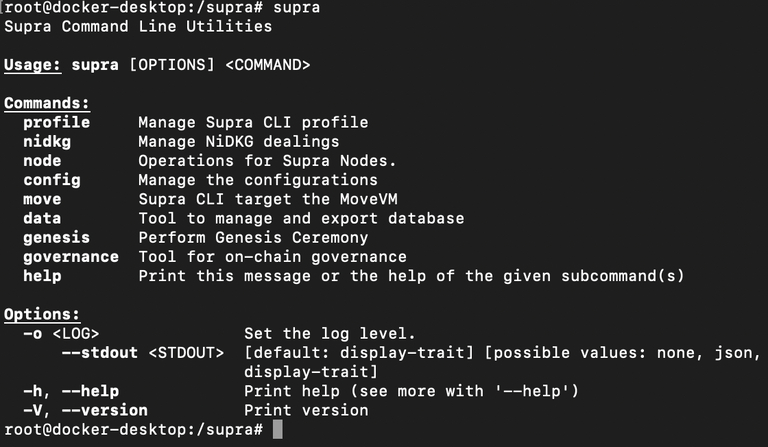
Example output of the "supra" command
Within the shell of the container, CLI commands operate in the same manner as you would expect on your host machine. For example, executing commands such as `supra move tool init` will initialize the new module within your current working directory. You may view all available arguments of any command by passing the `--help` argument.
Example: `supra move tool init --help`
### Source: https://docs.supra.com/network/move/getting-started/create-a-supra-account
# Create a Supra Account
Generate a key profile and view the public/private keys for use by the Supra CLI.
On May 2nd, 2025 a new version of the CLI was released. The new image (v9.0.12) introduced an improved profile feature
which deprecated the key command of the previous version (v6.3.0) along with an update to the key file structure.
If you have just upgraded, you must execute the following command to migrate your key files to the new version: `supra
profile migrate` After migration, you must modify the profiles as shown in step 3.
### Generate a new key/profile
Execute the following command to generate a new profile/set of keys.
execute me!
```bash
supra profile new accountA --network testnet
```
### Or Import an existing key/profile
If you already have a private key on hand that you wish to use, you can opt to import it rather than generating a new one. To import an existing private key, use the following command:
Profile names must be unique. If you attempt to generate or import a profile using a name that has already been taken,
the CLI will throw an error.
```
supra profile new accountA --network testnet
```
---
## Additional Commands
##### Modify the profile: `supra profile modify`
The new version of profiles contain the `rpc_url`, `faucet_url`, and `chain_id` associated with the profile. CLI commands will use the stored values of the calling profile for the respective command parameters unless manually overwritten. The above commands to create a new profile or import an existing profile will set the initial values to that of the testnet. If you wish to use the profile on mainnet, you must modify the profile with the mainnet values.\
\
To modify a profile, use the following command with the desired network:
```
supra profile modify accountA --network
```
##### Change the active profile: `supra profile activate`
CLI commands will be executed from the active profile.
To activate another profile, use the following command:
```
supra profile activate accountA
```
##### View stored profile public keys: `supra profile -l`
The active profile will be displayed with a `(*)` by the profile name.
If you wish to view existing keys within your current directory, use the following command:
```
supra profile -l
```
##### View stored profile private keys: `supra profile -l -r`
This will print the private keys of all profiles to your terminal. Make sure you are not live streaming, recording,
screensharing, etc. before executing this command to prevent compromising your keys.
If you wish to view the private key of your profile(s), use the following command:
```
supra profile -l -r
```
### Source: https://docs.supra.com/network/move/getting-started/create-a-move-package
# Create a Move Package
Create and deploy your first move module.
## Initialize your move package
### Create a new Move package
execute me!
```bash
supra move tool init --package-dir /supra/move_workspace/exampleContract --name exampleContract
```
This will create your project directory automatically, including a `Move.toml` file. This is a manifest file that contains important metadata about your package. This includes the package name, version, dependencies, named addresses, and more.
The `SupraFramework` dependency is automatically populated. This framework includes core components that you will interact with during your time on Supra. The framework package includes clearly defined documentation within the `/doc` directory for you to review alongside the Move code within the `/sources` directory. You can view [this package here](https://github.com/Entropy-Foundation/aptos-core/tree/dev/aptos-move/framework/supra-framework).
move.toml
### Update the named addresses
Open the `move.toml` file with your code editor. You can find these files on your host machine in the `/Documents/supra/move_workspace/exampleContract` directory if you followed this setup guide.
For now, add the below named address to your `Move.toml` file and set the value to your address.
You can view the address of your profiles by executing: `supra profile -l`
```toml
[addresses]
hello_blockchain ="YOUR-ADDRESS-HERE"
```
Named addresses allow identifiers such as `@hello_blockchain` to be used throughout your package, rather than hard coding an address value. When compiled into bytecode, any occurrence of the identifier such as `@hello_blockchain` will be replaced with the value set within the `move.toml` file.
### Source: https://docs.supra.com/network/move/getting-started/create-a-move-package/write-a-module
# Write a Module
Create and deploy your first move module.
If you have not already, open your newly initiatlized project within your code editor of choice on your host machine. Remember, the `move_workspace` directory within the container is bound to the `/supra/move_workspace` directory on your host machine. Any changes made to these files on the host machine will be reflected within the container.
\
If you are using VS Code, we highly recommend that you[ install the Supra Move extension](../../supra-move-vs-code-extension).
### Create a new move file within the `sources` directory.
In Move, global storage is a forest with trees rooted at an account address. Accounts can store both resource data and
module code. Modules are deployed to an account, rather than a unique address being generated at deployment as you may
be custom to with other VMs.
The sources directory holds the move modules that you will be working on within your project. Within the `sources` directory of your `exampleContract` package, create the `hello_blockchain.move` file.
execute me!
Once created, open the hello_blockchain.move file within your code editor and add the following code.
hello_blockchain.move
```rust
module hello_blockchain::message {
use std::error;
use std::signer;
use std::string;
use supra_framework::event;
//:!:>resource
struct MessageHolder has key {
message: string::String,
}
//<:!:resource
#[event]
struct MessageChange has drop, store {
account: address,
from_message: string::String,
to_message: string::String,
}
/// There is no message present
const ENO_MESSAGE: u64 = 0;
#[view]
public fun get_message(addr: address): string::String acquires MessageHolder {
assert!(exists(addr), error::not_found(ENO_MESSAGE));
borrow_global(addr).message
}
public entry fun set_message(account: signer, message: string::String)
acquires MessageHolder {
let account_addr = signer::address_of(&account);
if (!exists(account_addr)) {
move_to(&account, MessageHolder {
message,
})
} else {
let old_message_holder = borrow_global_mut(account_addr);
let from_message = old_message_holder.message;
event::emit(MessageChange {
account: account_addr,
from_message,
to_message: copy message,
});
old_message_holder.message = message;
}
}
#[test(account = @0x1)]
public entry fun sender_can_set_message(account: signer) acquires MessageHolder {
let addr = signer::address_of(&account);
supra_framework::account::create_account_for_test(addr);
set_message(account, string::utf8(b"Hello, Blockchain"));
assert!(
get_message(addr) == string::utf8(b"Hello, Blockchain"),
ENO_MESSAGE
);
}
}
```
### Source: https://docs.supra.com/network/move/getting-started/create-a-move-package/compile-and-publish
# Compile and Publish
Create and deploy your first move module.
It is good practice to review the possible arguments of each command before you execute them. You can do this by
passing the `--help` argument. Example: `supra move tool publish --help`
For the latest RPC URL, please refer to the [Supra Network Information](/network/network-information) page.
### Compile your package
You do not need to pass the `--package-dir` command if your current working directory is the root of your package where
the `Move.toml` file is located.
Compiling your package will fetch any dependencies defined in your `Move.toml` file before building your package. A new directory named `build` will be created storing the bytecode and sources for your package.
execute me!
```bash
supra move tool compile --package-dir /supra/move_workspace/exampleContract
```
### Get Testnet Supra from the faucet
Note that CLI commands will be executed from the currently activated profile within your CLI. If you want to execute
the command from a different profile, you can pass the `--profile` argument or you can activate a different profile
with `supra key activate-profile accountB`.
To publish our package, we will need some gas. Obtain some Testnet gas from the faucet to proceed. Testnet tokens do not hold any monetary value.
execute me!
```bash
supra move account fund-with-faucet --rpc-url https://rpc-testnet.supra.com
```
Note, there is no faucet for Mainnet. If you are looking to deploy on Mainnet, you will have to obtain Supra
separately.
### Deploy your package
Once your package is compiled and you have tokens to cover the gas, execute the following command to publish your package to the network.
execute me!
```bash
supra move tool publish --package-dir /supra/move_workspace/exampleContract --rpc-url https://rpc-testnet.supra.com
```
### Source: https://docs.supra.com/network/move/getting-started/create-a-move-package/interact-with-a-package
# Interact with a Package
Create and deploy your first move module.
## Interacting with your module
The `hello_blockchain` module stores a string at an account within the `MessageHolder` resource of the calling account that can later be retrieved. To try interacting with the contract we will:
1. Call `set_message` to store a string on-chain
2. Call `get_message` to view the stored message on-chain
### Store a string/message on-chain
Replace the place holder values denoted by `<>` with your account address before executing the commands.
replace & execute me!
```
supra move tool run --function-id '::message::set_message' --args string:"Hello world!" --rpc-url https://rpc-testnet.supra.com
```
### View the string/message stored on-chain
replace & execute me!
### Final step: [Join our Discord](https://discord.gg/supralabs)!
## Commands used to interact with modules
##### Calling a view function: `supra move tool view`
The `view` command is used to call `view` functions, which do not change the state of the VM in any way. View functions are denoted with `#[view]` above the function declaration.
Expects the two following arguments:\
`--function-id` which designates the function to be called. The format is as follows: `MODULE_ADR::MODULE_NAME::FUNCTION_NAME`
`--args` which designates the arguments to be passed to the function. If multiple parameters must be passed, they are separated by spaces. The format is as follows: `TYPE:VALUE`
Execute the following command to better understand the arguments of the command.
```bash
supra move tool view --help
```
##### Executing an entry function: `supra move tool run`
The `run` command is used to call `entry` functions, which result in some transaction. `Entry` functions are your gateway to interacting with modules. We are unable to call functions without the `entry` declaration.
Expects the two following arguments:\
`--function-id` which designates the function to be called. The format is as follows: `MODULE_ADR::MODULE_NAME::FUNCTION_NAME`
`--args` which designates the arguments to be passed to the function. If multiple parameters must be passed, they are separated by spaces. The format is as follows: `TYPE:VALUE`
Execute the following command to better understand the arguments of the command.
```bash
supra move tool run --help
```
### Source: https://docs.supra.com/network/move/getting-started/your-first-dapp-with-starkey
# Create a dApp with StarKey
Create your first Dapp using StarKey wallet, the official wallet of Supra
## Setup the project
#### Initialize the frontend
```
npx create-react-app supra-dapp --template typescript
```
#### Navigate into the project directory
```
cd supra-dapp
```
#### Install the TypeScript SDK
```
npm install supra-l1-sdk
```
## Start building
#### Open the `App.tsx` file and update it
Remove the template code and replace it with the code below. This will give us a fresh foundation to work with.
```typescript
function App() {
return ;
}
export default App;
```
#### Import dependencies
We'll be utilizing the react library along with useful functions from the `supra-l1-sdk`.
```typescript
```
#### Initialize the `supraProvider` and state hooks
`supraProvider` - used to interact with StarKey wallet.
`isStarKeyInstalled` - boolean value of StarKey extension installation status
`accounts` - Array of connected accounts
`networkData` - Chain ID for the connected network
```typescript
function App() {
let supraProvider: any = typeof window !== "undefined" && (window as any)?.starkey?.supra;
const [isStarkeyInstalled, setIsStarkeyInstalled] = useState(!!supraProvider);
const [accounts, setAccounts] = useState([]);
const [networkData, setNetworkData] = useState();
return ;
}
```
All code from this step forward will be included within the `App()` function.
#### Check for the injected StarKey object
The following code checks for the injected StarKey object every 500ms for up to 5 seconds. If found, the function will update the StarKey installation status and obtain the connected accounts.
```typescript
const checkForStarkey = () => {
const intervalId = setInterval(() => {
if ((window as any)?.starkey) {
supraProvider = (window as any)?.starkey.supra;
clearInterval(intervalId);
setIsStarkeyInstalled(true);
updateAccounts().then();
}
}, 500);
setTimeout(() => {
clearInterval(intervalId);
}, 5000);
};
useEffect(() => {
checkForStarkey();
}, []);
```
#### Get the connected accounts
The following code obtains the connected accounts (if any) and stores them.
```typescript
const updateAccounts = async () => {
if (supraProvider) {
try {
const response_acc = await supraProvider.account();
if (response_acc.length > 0) {
setAccounts(response_acc);
} else {
setAccounts([]);
}
} catch (e) {
setAccounts([]);
}
getNetworkData().then();
}
};
```
#### Get the connected network data
The following code obtains the network data (chain id) of the connected wallet.
```typescript
const getNetworkData = async () => {
if (supraProvider) {
const data = await supraProvider.getChainId();
console.log(data);
if (data) {
setNetworkData(data)
}
}
};
```
#### Initialize additional hooks
The following code will assist in maintaining updated network/account data while also handling events emitted by the injected StarKey object.
```typescript
useEffect(() => {
if (supraProvider) {
supraProvider.on("accountChanged", (acc: string[]) => {
setAccounts(acc);
});
supraProvider.on("networkChanged", (data: any) => {
setNetworkData(data);
});
supraProvider.on("disconnect", () => {
resetWalletData();
});
}
}, [supraProvider]);
useEffect(() => {
if (accounts) {
getNetworkData().then();
}
}, [accounts]);
```
#### Handle wallet connections
The following code will handle the wallet connections, triggered through a button click (which we will setup later) or an emitted event from the StarKey object.
When a wallet is connected, the accounts must be updated. When a wallet is disconnected, we must clear the stored accounts and network data.
```typescript
const connectWallet = async () => {
const response = await supraProvider.connect();
updateAccounts().then();
};
const disconnectWallet = async () => {
if (supraProvider) {
await supraProvider.disconnect();
}
resetWalletData();
};
const resetWalletData = ()=>{
setAccounts([]);
setNetworkData({});
}
```
#### Switch between mainnet and testnet
The following code will be triggered through a button click to prompt the user to switch between mainnet and testnet
```typescript
const switchToTestnet = async (id:string) => {
if (supraProvider) {
await supraProvider.changeNetwork({chainId:"6"});
await getNetworkData()
}
};
const switchToMainnet = async () => {
if (supraProvider) {
await supraProvider.changeNetwork({chainId:"8"});
await getNetworkData()
}
};
```
#### Send a transaction
The following code creates a raw payload that calls the `transfer` function of the `supra_account` module. Once the raw transaction payload is created, it uses the `supraProvider.sendTransaction` function to prompted the connect wallet to sign and submit.\
\
It will transfer `1 supra` to the address `0x8de4158b48633d853186d5fc790718e5821d7d3c4855e06bcd97b105389a7d0f` .
```typescript
const sendRawTransaction = async () => {
const txExpiryTime = (Math.ceil(Date.now() / 1000) + 30) //30 seconds
/** OptionalTransactionPayloadArgs {
maxGas?: bigint;
gasUnitPrice?: bigint;
txExpiryTime?: bigint;
}*/
const optionalTransactionPayloadArgs = {
txExpiryTime
}
const rawTxPayload = [
accounts[0],
0,
"0000000000000000000000000000000000000000000000000000000000000001",
"supra_account",
"transfer",
[],
[
new HexString("0x8de4158b48633d853186d5fc790718e5821d7d3c4855e06bcd97b105389a7d0f").toUint8Array(),
BCS.bcsSerializeUint64(100000000)
],
optionalTransactionPayloadArgs
];
const data = await supraProvider.createRawTransactionData(rawTxPayload);
if (data) {
const params = {
data: data,
/*from: accounts[0],
to: "",
chainId: networkData.chainId,
value: "100000000",*/
};
const txHash = await supraProvider.sendTransaction(params);
}
};
```
#### Create the buttons displayed on the frontend
The following code renders buttons on the frontend that will interact with the above functions.
```typescript
return
;
}
export default App;
```
### Source: https://docs.supra.com/network/move/getting-started/testnet-faucet
# Testnet Faucet
#### Using Supra CLI
For the latest RPC URL, please refer to the [Supra Network Information](/network/network-information) page.
Option 1: Using account profile.
```
supra move account fund-with-faucet --profile --url
```
Option 2: Using account address.
```
supra move account fund-with-faucet --account --url
```
Example Output:
```json
{
"Accepted": "TXN-HASH"
}
```
#### Using GET request
Make a GET call to the faucet endpoint by inserting your address into the following URL.
```
https://rpc-testnet.supra.com/rpc/v1/wallet/faucet/
```
Example Output:
```json
{
"Accepted": "TXN-HASH"
}
```
#### Using [StarKey Wallet](https://www.starkey.app)
- Select Testnet from the network dropdown.
- Select the Supra token from the asset list.
- Press the "Collect" faucet button.
### Source: https://docs.supra.com/network/move/network-information
# Network Information
Relative network, faucet, and API details.
---- | ------------------------------- | -------- |
| Mainnet | `https://rpc-mainnet.supra.com` | 8 |
| Testnet | `https://rpc-testnet.supra.com` | 6 |
#### Testnet Faucet
`https://rpc-testnet.supra.com/rpc/v1/wallet/faucet/`
---
### [Supra EVM](https://app.gitbook.com/s/c4EYjCJ7ng67f48XRDDD/network-information#supra-evm)
| Network | Rest API | Chain ID |
| ------------- | -------- | -------- |
| RPC Info Soon | TBA | TBA |
#### EVM Faucet
Coming soon...
### Source: https://docs.supra.com/network/move/token-standards
# Token Standards
## Fungible Token Standards
The migration feature of Coin to Fungible Asset is currently disabled.
| Standard Name | Module Address | Links |
| ------------------------------------------- | ------------------------------------------------------------------------------- | ------------------------------------------------------------------------------------------------------------------------------------------------------------------------------------------------------------------------------------------------------------------- |
| [Fungible Asset](https://suprascan.io/fa) | [0x1](https://suprascan.io/address/0x1/f?tab=modules&moduleName=fungible_asset) | [Module](https://github.com/Entropy-Foundation/aptos-core/blob/dev/aptos-move/framework/supra-framework/sources/fungible_asset.move) / [Docs](https://github.com/Entropy-Foundation/aptos-core/blob/dev/aptos-move/framework/supra-framework/doc/fungible_asset.md) |
| [Coin (Legacy)](https://suprascan.io/coins) | [0x1](https://suprascan.io/address/0x1/f?tab=modules&moduleName=coin) | [Module](https://github.com/Entropy-Foundation/aptos-core/blob/dev/aptos-move/framework/supra-framework/sources/coin.move) / [Docs](https://github.com/Entropy-Foundation/aptos-core/blob/dev/aptos-move/framework/supra-framework/doc/coin.md) |
## Non-Fungible Token Standards
| Standard Name | Module Address | Links |
| -------------- | ---------------------------------------------------------------------- | --------------------------------------------------------------------------------------------------------------------------------------------------------------------------------------------------------------------------------------------------------- |
| Digital Asset | [0x4](https://suprascan.io/address/0x4/f?tab=modules&moduleName=token) | [Module](https://github.com/Entropy-Foundation/aptos-core/blob/dev/aptos-move/framework/aptos-token-objects/sources/token.move) / [Docs](https://github.com/Entropy-Foundation/aptos-core/blob/dev/aptos-move/framework/aptos-token-objects/doc/token.md) |
| Token (Legacy) | [0x3](https://suprascan.io/address/0x3/f?tab=modules&moduleName=token) | [Module](https://github.com/Entropy-Foundation/aptos-core/blob/dev/aptos-move/framework/aptos-token/sources/token.move) / [Docs](https://github.com/Entropy-Foundation/aptos-core/blob/dev/aptos-move/framework/aptos-token/doc/token.md) |
### Source: https://docs.supra.com/network/move/learn-move
# Learn Move 101
Want to learn Move with real examples? Start building today!
Here you'll find hands-on Move examples covering smart contracts, asset management, and on-chain logic. Learn by doing with clear, practical guides.
borrow_global reads a resource struct from a specific address without a signer, but the function
must declare acquires ResourceName.
}
href="learn-move/reading-resource-data-with-borrow_global"
/>
vector::push_back adds elements to a vector using a mutable reference (&mut),
allowing dynamic storage updates.
}
href="learn-move/adding-elements-with-vector-push_back"
/>
### Source: https://docs.supra.com/network/move/learn-move/move-101
# Getting Started with Move
New to Move? Start here with the basics!
Learn the fundamentals of the Move programming language with simple, step-by-step examples. This section covers key concepts like integers, math operations, and more, helping you build a solid foundation for smart contract development.
---
For the latest RPC URL, please refer to the [Supra Network Information](/network/network-information) page.
## Getting Started with Move
Move code is organized into modules that are uploaded to the Supra blockchain. Users can interact with the modules by calling functions from these modules via transactions. Modules are grouped into packages. When uploading code to the blockchain, an entire package of multiple modules will be uploaded.
Each Move module has a unique identifier comprising the address it's deployed at and the module name. The fully qualified name is of the format `::`
```toml
module 0xcafe::Dinosaur_nest {
}
```
**We'll create a DinosaurNest contract with the following features:**
Keep track of all the Dinosaurs it has spawned. Birth new Dinosaurs via a function We'll generate a special Gendna code every time a Dinosaur is spawned to create unique genetics for each Dinosaur. The special abilities genetic code has digits and looks like below: `1234567890`
This special Gendna code represents each Dinosaur's unique attributes, with every 2 digits representing one, such as shirts, hats, and glasses. Later, you can have more fun and add new attributes by adding more digits to the special abilities code.
Let's start by adding a number to track the number of digits allowed in a Gendna code. This number will be stored on the blockchain (global storage). This data can be accessed and changed by the module's code as well as read by web UI.
On Supra, all data written to the blockchain needs to be declared in a struct that has the key attribute. For now, take a look at the simple example below:
```toml
module 0xcafe::Dinosaur_nest {
// All structs that are written to blockchain need to have the `key` attribute.
struct DinosaurGendna has key {
Gendna_digits: u64,
}
}
```
In the example above, we're storing a simple value (`Gendna_digits`) in global storage. This value can be read in functions later. One common confusion is between global storage and local variables. Unless explicitly declared in `struct` the `key` attribute, all variables declared and modified in a function are local variables and thus not stored on the blockchain (in global storage). Also, note that the struct name is capitalized by convention (`DinosaurGendna` instead of `Dinosaur_Gendna`).
### Source: https://docs.supra.com/network/move/learn-move/unsigned-integers-in-move
# Unsigned Integers in Move
Learn how Move handles different unsigned integer types, their use cases, and how they impact storage, performance, and gas efficiency.
For the latest RPC URL, please refer to the [Supra Network Information](/network/network-information)
page.
## Unsigned Integers: u8, u32, u64, u128, u256
Move supports multiple different types of unsigned integers. The values of these integers are always zero or larger. The different types of integers have different maximum values they can store. For example, `u8` can store values up to 255, while `u256` can store values up to 2^256 - 1. The most commonly used integer type is `u64`. Smaller types such as `u8` and `u32` are usually only used to save on gas (less storage space used). Larger sizes such as `u128` and `u256` are only used for when you need to store very large numbers.
Now that we have defined the `DinosaurGendna` struct, we need to set its initial value. We can’t set the initial value directly when defining a `struct`, so we'll need to create a function to do that. Recall that structs can be stored directly in global storage on Supra. Structs stored in global storage are called Resources. Each Resource needs to be stored at a specific address. This can be the same address where the module is deployed or any other user address. This is different from other blockchains - code and data can coexist at the same address on Supra. For our `Dinosaur_nest module`, we'll keep it simple and store the `DinosaurGendna` resource at the same address as the module. Let’s initialize it by writing the `init_module` function, where we get access to the signer of the address we're deploying to. `init_module` is called when the module is deployed to the blockchain and is the perfect place for initializing data. Don't worry about what a signer is for now - we'll cover that in later lessons. You just need to know that the signer is required to create and store a new resource at an address the first time.
Moving on with our code:
```toml
module 0xcafe::Dinosaur_nest {
struct DinosaurGendna has key {
Gendna_digits: u64,
}
fun init_module(cafe_signer: &signer) {
move_to(cafe_signer, DinosaurGendna {
Gendna_digits: 10,
});
}
}
```
In the example above, we're creating a new `DinosaurGendna` resource with a default value (`Gendna_digits`) of 10 (our Gendna Value as shared earlier) and storing it at 0xcafe (same address as the module) with `move_to`.
`move_to is` a special function that requires a signer that can be called to store a resource at a specific address.
### Source: https://docs.supra.com/network/move/learn-move/math-operations-in-move
# Math Operations in Move
Move supports familiar math operations with integer-based precision, requiring typecasting for calculations between different unsigned integer types.
For the latest RPC URL, please refer to the [Supra Network Information](/network/network-information) page.
## Math in Move
Doing math in Move is easy and very similar to other programming languages:
- Add: `x + y`
- Subtract: `x - y`
- Multiply: `x * y`
- Divide: `x / y`
- Mod: `x % y`
- Exponential: `x ^ y`
Note: This is integer math, which means results are rounded down.
For example, `5 / 2 = 2`
To make sure our Dinosaur's Gendna is only 10 digits, let's make another `u64` value equal to 10^10. That way we can later use the modulus operator `%` to create valid Gendna codes from any randomly generated numbers.
Create another integer value named `Gendna_modulus` in the DinosaurGendna struct, and set it equal to 10 to the power of `Gendna_digits`
```toml
module 0xcafe::Dinosaur_nest {
struct DinosaurGendna has key {
Gendna_digits: u64,
Gendna_modulus: u64,
}
fun init_module(cafe_signer: &signer) {
move_to(cafe_signer, DinosaurGendna {
Gendna_digits: 10,
Gendna_modulus: 10 ^ 10,
});
}
}
```
So far we've seen different types of integers: `u8`, `u32`, `u64`, `u128`, `u256`. Although math can be done easily among integers of the same type, it's not possible to do math directly between integers of different types,
## Example Below:
```toml
fun mixed_types_math(): u64 {
let x: u8 = 1;
let y: u64 = 2;
// This will fail to compile as x and y are different types. One is u8, the other is u64.
x + y
}
```
### **Let’s cast Gendna_modulus to u256 with (Gendna_modulus as u256). Remember that the parentheses () are required when typecasting:**
```toml
fun mixed_types_math(): u64 {
let x: u8 = 1;
let y: u64 = 2;
// This will fail to compile as x and y are different types. One is u8, the other is u64.
(x as u64) + y
}
```
### The actual contract would look like this:
```toml
module 0xcafe::Dinosaur_nest {
struct DinosaurGendna has key {
Gendna_digits: u64,
Gendna_modulus: u256,
}
fun init_module(cafe_signer: &signer) {
let Gendna_digits = 10;
let Gendna_modulus = 10 ^ Gendna_digits;
move_to(cafe_signer, DinosaurGendna {
Gendna_digits,
Gendna_modulus: (Gendna_modulus as u256),
});
}
}
```
### Source: https://docs.supra.com/network/move/learn-move/using-vectors-in-move
# Using Vectors in Move
Vectors in Move are dynamic lists that can grow or shrink as needed, making them essential for managing collections of data, including structs.
For the latest RPC URL, please refer to the [Supra Network Information](/network/network-information)
page.
## Vectors
When you want a list of values, use vectors. A `vector` in Move is dynamic by default and has no fixed size. It can get larger or smaller as needed. Vector in Supra and Aptos are available to import and use at `std::vector`.
You just need to do “`use std::vector`” at the top of your module to be able to access it.
You can also store structs in vectors, Note that for structs that are stored in a resource struct, you need to add the store attribute to the struct:
```toml
struct Balance has store {
owner: address,
balance: u64,
}
struct GlobalData has key {
balances: vector,
}
```
When creating an empty vector you can use the following syntax: `let empty_vector = vector[];`
We need to track all the Dinosaurs created from Dinosaur_nest, We can do this by declaring two new structs:
`Dinosaur` Struct having Key and a new resource struct named `DinosaurSwarm` which has a vector of Dinosaur structs, this resource needs to be stored at `0xcafe` in `init_module` with an empty vector of Dinosaurs to start with.
## Code Follows Like:
```toml
module 0xcafe::Dinosaur_nest {
use std::vector;
struct DinosaurGendna has key {
Gendna_digits: u64,
Gendna_modulus: u256,
}
struct Dinosaur has store {
Gendna: u64,
}
struct DinosaurSwarm has store {
Dinosaurs: vector,
}
fun init_module(cafe_signer: &signer) {
let Gendna_digits = 10;
let Gendna_modulus = 10 ^ Gendna_digits;
move_to(cafe_signer, DinosaurGendna {
Gendna_digits,
Gendna_modulus: (Gendna_modulus as u256),
});
move_to(cafe_signer, DinosaurSwarm {
Dinosaurs: vector[],
});
}
}
```
We've only been using the `init_module` function, which is called when the module is deployed to initialize default values. we'll create one more function that will later be called by the user to create a new Dinosaur.
**Let’s create a new function named `spawn_Dinosaur` that takes one argument of type `u64` named `Gendna` and returns a Dinosaur struct with that Gendna:**
Note: This function is public, which means it can be called from any other Move module. we'll keep all functions
public, except for init_module. init_module has to be private because it's called only once when the module is
deployed.
```toml
module 0xcafe::Dinosaur_nest {
use std::vector;
struct DinosaurGendna has key {
Gendna_digits: u64,
Gendna_modulus: u64,
}
struct Dinosaur has store {
Gendna: u64,
}
struct DinosaurSwarm has key {
Dinosaurs: vector,
}
fun init_module(cafe_signer: &signer) {
let Gendna_digits = 10;
let Gendna_modulus = 10 ^ Gendna_digits;
move_to(cafe_signer, DinosaurGendna {
Gendna_digits,
Gendna_modulus: (Gendna_modulus as u256),
});
move_to(cafe_signer, DinosaurSwarm {
Dinosaurs: vector[],
});
}
public fun spawn_Dinosaur(Gendna: u64): Dinosaur {
Dinosaur {
Gendna,
}
}
}
```
### Source: https://docs.supra.com/network/move/learn-move/reading-resource-data-with-borrow_global
# Reading Resource Data with borrow_global
`borrow_global` allows you to read an existing resource struct from a specific address without needing a signer, but the function must declare that it accesses the resource using acquires ResourceName.
For the latest RPC URL, please refer to the [Supra Network Information](/network/network-information) page.
## `borrow_global`: read an existing resource struct
We just need to call `borrow_global` with the right resource type and address. The address can be passed into the function as an argument or referred to specifically with @ such as `@0xcafe`. A signer is not required here. If the resource is not found at the address, the function will error when the code is run on the blockchain. The function that calls `borrow_global` also needs to declare that it does so by adding “`acquires ResourceName`” at the end.
**Let’s write a new function named get_Gendna_digits that returns the Gendna_digits field of the DinosaurGendna resource stored at 0xcafe:**
```toml
module 0xcafe::Dinosaur_nest {
use std::vector;
struct DinosaurGendna has key {
Gendna_digits: u64,
Gendna_modulus: u64,
}
struct Dinosaur has store {
Gendna: u64,
}
struct DinosaurSwarm has key {
Dinosaurs: vector,
}
fun init_module(cafe_signer: &signer) {
let Gendna_digits = 10;
let Gendna_modulus = 10 ^ Gendna_digits;
move_to(cafe_signer, DinosaurGendna {
Gendna_digits,
Gendna_modulus: (Gendna_modulus as u256),
});
move_to(cafe_signer, DinosaurSwarm {
Dinosaurs: vector[],
});
}
public fun spawn_Dinosaur(Gendna: u64): Dinosaur {
Dinosaur {
Gendna,
}
}
public fun get_Gendna_digits(): u64 acquires DinosaurGendna {
borrow_global(@0xcafe).Gendna_digits
}
}
```
### Source: https://docs.supra.com/network/move/learn-move/passing-data-in-move-value-vs.-reference
# Passing Data in Move: Value vs. Reference
Move uses pass-by-value for copies and pass-by-reference (& for reading, &mut for modifying) to data handling.
For the latest RPC URL, please refer to the [Supra Network Information](/network/network-information) page.
## pass-by-value & pass-by-reference
In Move, when you pass a simple value as u64 to a function, you might be making a copy of it. This is called pass-by-value, **for example**:
```move
fun add_one(value: u64) {
// This doesn't change the original value!
value = value + 1;
}
fun call_add_one() {
let value = 10;
// This is wrong as it makes a copy of value!
add_one(value);
// This will error out as the value is still 10!
assert!(value == 11, 0);
}
```
**So how do we modify the original value?**
We need to pass a mut reference (`&mut`) to the value instead of the value itself. This is called pass-by-reference. This is similar to how you pass a pointer to a value in C/C++ or Rust.
There are two types of references in Move: `references` (&) and `mutable references` (\&mut). The immutable reference (&) is often used to pass a value such as a vector to a function that only intends to read data instead of writing it. A function that takes a reference needs to explicitly declare:
```move
// get_first_element takes a reference to a vector and returns the first element.
fun get_first_element(values: &vector): u64 {
// vector::borrow also takes a vector reference and returns a reference to the value.
// * is needed here to dereference the value and make a copy of it to return.
*vector::borrow(values, 0)
}
```
You can also pass a reference to a struct and modify it:
```move
struct Balance {
value: u64,
}
// This would fail if the function takes &Balance instead of &mut Balance.
fun double_balance(balance: &mut Balance): u64 {
balance.value = balance.value * 2;
}
```
**Now, Write a function in `Dinosaur_nest` that returns the Gendna of the first Dinosaur in the `DinosaurSwarm`. Don’t forget the “`acquires`” declaration!**
```move
module 0xcafe::Dinosaur_nest {
use std::vector;
struct DinosaurGendna has key {
Gendna_digits: u64,
Gendna_modulus: u64,
}
struct Dinosaur has store {
Gendna: u64,
}
struct DinosaurSwarm has key {
Dinosaurs: vector,
}
fun init_module(cafe_signer: &signer) {
let Gendna_digits = 10;
let Gendna_modulus = 10 ^ Gendna_digits;
move_to(cafe_signer, DinosaurGendna {
Gendna_digits,
Gendna_modulus: (Gendna_modulus as u256),
});
move_to(cafe_signer, DinosaurSwarm {
Dinosaurs: vector[],
});
}
public fun spawn_Dinosaur(Gendna: u64): Dinosaur {
Dinosaur {
Gendna,
}
}
public fun get_Gendna_digits(): u64 acquires DinosaurGendna {
borrow_global(@0xcafe).Gendna_digits
}
public fun set_Gendna_digits(new_Gendna_digits: u64) acquires DinosaurGendna {
let Dinosaur_Gendna = borrow_global_mut(@0xcafe);
Dinosaur_Gendna.Gendna_digits = new_Gendna_digits;
}
public fun get_first_Dinosaur_Gendna(): u64 acquires DinosaurSwarm {
let Dinosaur_swarm = borrow_global(@0xcafe);
let first_Dinosaur = vector::borrow(&Dinosaur_swarm.Dinosaurs, 0);
first_Dinosaur.Gendna
}
}
```
### Source: https://docs.supra.com/network/move/learn-move/adding-elements-with-vector-push_back
# Adding Elements with vector::push_back
`vector::push_back` allows you to add elements to a vector by passing a mutable reference (&mut), enabling dynamic storage updates within a module.
For the latest RPC URL, please refer to the [Supra Network Information](/network/network-information) page.
## `vector::push_back`: add all the things we've learned
We can add all the things we've learned so far to create a more complex module. One more thing you can do now that you know references: You can add an element to a vector using `vector::push_back` and pass a mutable reference to the vector.
**Let’s Modify `spawn_Dinosaur` to add the new Dinosaur to the DinosaurSwarm's vector of Dinosaurs instead of returning it.**
```move
module 0xcafe::Dinosaur_nest {
use std::vector;
struct DinosaurGendna has key {
Gendna_digits: u64,
Gendna_modulus: u64,
}
struct Dinosaur has store {
Gendna: u64,
}
struct DinosaurSwarm has key {
Dinosaurs: vector,
}
fun init_module(cafe_signer: &signer) {
let Gendna_digits = 10;
let Gendna_modulus = 10 ^ Gendna_digits;
move_to(cafe_signer, DinosaurGendna {
Gendna_digits,
Gendna_modulus: (Gendna_modulus as u256),
});
move_to(cafe_signer, DinosaurSwarm {
Dinosaurs: vector[],
});
}
public fun spawn_Dinosaur(Gendna: u64) acquires DinosaurSwarm {
let Dinosaur = Dinosaur {
Gendna,
};
let Dinosaur_swarm = borrow_global_mut(@0xcafe);
vector::push_back(&mut Dinosaur_swarm.Dinosaurs, Dinosaur);
}
public fun get_Gendna_digits(): u64 acquires DinosaurGendna {
borrow_global(@0xcafe).Gendna_digits
}
public fun set_Gendna_digits(new_Gendna_digits: u64) acquires DinosaurGendna {
let Dinosaur_Gendna = borrow_global_mut(@0xcafe);
Dinosaur_Gendna.Gendna_digits = new_Gendna_digits;
}
public fun get_first_Dinosaur_Gendna(): u64 acquires DinosaurSwarm {
let Dinosaur_swarm = borrow_global(@0xcafe);
let first_Dinosaur = vector::borrow(&Dinosaur_swarm.Dinosaurs, 0);
first_Dinosaur.Gendna
}
}
```
### Source: https://docs.supra.com/network/move/learn-move/emitting-events-with-event-emit
# Emitting Events with event::emit
Events allow smart contracts to emit signals that external applications can listen for, making it possible to track blockchain actions in real time.
For the latest RPC URL, please refer to the [Supra Network Information](/network/network-information) page.
## Event::Emit
Events are a way for your contract to communicate that something happened on the blockchain to your app front-end, which can be 'listening' for certain events and taking action when they happen.
In order to emit an event, you need to do three things:
- Define the event struct.
- Use `event::emit` to emit it
**Note:** Event structs need to be declared with the `#[event]` annotation.
**Finally, Let's add an event named `SpawnDinosaurEvent` that contains the new Gendna code & Emit `SpawnDinosaurEvent` when a Dinosaur is created.**
```toml
module 0xcafe::Dinosaur_nest {
use supra_framework::account;
use supra_framework::event;
use std::vector;
struct DinosaurGendna has key {
Gendna_digits: u64,
Gendna_modulus: u64,
}
struct Dinosaur has store {
Gendna: u64,
}
#[event]
struct SpawnDinosaurEvent has drop, store {
Gendna: u64,
}
struct DinosaurSwarm has key {
Dinosaurs: vector,
}
fun init_module(cafe_signer: &signer) {
let Gendna_modulus = 10 ^ 10;
move_to(cafe_signer, DinosaurGendna {
Gendna_digits: 10,
Gendna_modulus,
});
move_to(cafe_signer, DinosaurSwarm {
Dinosaurs: vector[],
});
}
fun spawn_Dinosaur(Gendna: u64) acquires DinosaurSwarm {
let Dinosaur = Dinosaur {
Gendna,
};
let Dinosaur_swarm = borrow_global_mut(@0xcafe);
vector::push_back(&mut Dinosaur_swarm.Dinosaurs, Dinosaur);
event::emit(SpawnDinosaurEvent {
Gendna,
});
}
public fun get_Gendna_digits(): u64 acquires DinosaurGendna {
borrow_global(@0xcafe).Gendna_digits
}
public fun set_Gendna_digits(new_Gendna_digits: u64) acquires DinosaurGendna {
let Dinosaur_Gendna = borrow_global_mut(@0xcafe);
Dinosaur_Gendna.Gendna_digits = new_Gendna_digits;
}
public fun get_first_Dinosaur_Gendna(): u64 acquires DinosaurSwarm {
let Dinosaur_swarm = borrow_global(@0xcafe);
let first_Dinosaur = vector::borrow(&Dinosaur_swarm.Dinosaurs, 0);
first_Dinosaur.Gendna
}
}
```
## Wrapping Up
Till now you must have gotten a good idea of how things get Built and How Logic works in MOVE. You can find the Move.toml and Source File in the repo, fort it, and run on your side to get hands-on and learn with building your version of the Move Module as well.
## Contribution
Feel free to contribute to this project by submitting pull requests or opening issues, all contributions that enhance the functionality or user experience of this project are welcome.
### Source: https://docs.supra.com/network/move/move-book
# Move Book
The Move Book, modified for the Supra blockchain.
## Introduction
Welcome to Move, a next generation language for secure asset programming. Its primary use case is in blockchain environments, where Move programs are used to construct state changes. Move allows developers to write programs that flexibly manage and transfer assets, while providing the security and protections against attacks on those assets. However, Move has been developed with use cases in mind outside a blockchain context as well.
Move takes its cue from [Rust](https://www.rust-lang.org/) by using resource types with move (hence the name) semantics as an explicit representation of digital assets, such as currency.
### Source: https://docs.supra.com/network/move/move-book/getting-started
# Getting Started
### Source: https://docs.supra.com/network/move/move-book/getting-started/modules-and-scripts
# Modules and Scripts
## Modules and Scripts
Move has two different types of programs: _**Modules**_ and _**Scripts**_. Modules are libraries that define struct types along with functions that operate on these types. Struct types define the schema of Move's global storage, and module functions define the rules for updating storage. Modules themselves are also stored in global storage. A scripts is an executable entrypoint similar to a `main` function in a conventional language. A script typically calls functions of a published module that perform updates to global storage. Scripts are ephemeral code snippets that are not published in global storage.
A Move source file (or **compilation unit**) may contain multiple modules and scripts. However, publishing a module or executing a script are separate VM operations.
### Syntax
#### Scripts
A script has the following structure:
```
script {